
|
Größe: 9600
Kommentar:
|
Größe: 12845
Kommentar:
|
| Gelöschter Text ist auf diese Art markiert. | Hinzugefügter Text ist auf diese Art markiert. |
| Zeile 38: | Zeile 38: |
| '''The following software version is required for the operation of the GimbalCtrl: | '''The following software version is required for the operation of the !GimbalCtrl: |
| Zeile 69: | Zeile 69: |
| The GimbalCtrl controls nick, roll and yaw of an [[https://www.basecamelectronics.com/|AlexMos Brushless Gimbal]]. | The !GimbalCtrl controls nick, roll and yaw of an [[https://www.basecamelectronics.com/|AlexMos Brushless Gimbal]]. |
| Zeile 90: | Zeile 90: |
| [[ http://gallery3.mikrokopter.de/var/albums/intern/MK-Baugruppen/GimbalCtrl/AlexMos-Anschluss.jpg?m=1511795195 | {{ http://gallery3.mikrokopter.de/var/thumbs/intern/MK-Baugruppen/GimbalCtrl/AlexMos-Anschluss.jpg?m=1511795195 }} ]] {{{#!html </div> }}} ##///////////////////////////////////////////////////////////////////////// <<BR>> Connect the GimbalCtrl with the I2C-Bus of your !MikroKopter !FlightCtrl. The output will be connected to GND, Rx and Tx of the serial input of your !AlexMos-PCB. |
[[ http://gallery3.mikrokopter.de/var/albums/intern/MK-Baugruppen/GimbalCtrl/AlexMos-Anschluss.jpg?m=1513171319 | {{ http://gallery3.mikrokopter.de/var/thumbs/intern/MK-Baugruppen/GimbalCtrl/AlexMos-Anschluss.jpg?m=1513171319 }} ]] {{{#!html </div> }}} ##///////////////////////////////////////////////////////////////////////// <<BR>> Connect the !GimbalCtrl with the I2C-Bus of your !MikroKopter !FlightCtrl. The output will be connected to GND, Rx and Tx of the serial input of your !AlexMos-PCB. ########################################################################### <<BR>><<BR>><<BR>><<BR>><<BR>><<BR>> = GimbalCtrl - LED = the !GimbalCtrl has a red and green led: * green LED => ON * red LED => fast flashing => !GimbalCtrl is connect via I2C on your !FlightCtrl. Brushless Gimbal was not recognized (the connection is wrong, gimbal is OFF ...) <<BR>> * green LED => flashing slow * red LED => OFF => !GimbalCtrl is connect via I2C on your !FlightCtrl. Brushless Gimbal was detected. |
| Zeile 122: | Zeile 144: |
| '''INFO:''' When you setup the !AlexMos-PCB __remove__ the GimbalCtrl. | '''INFO:''' When you setup the !AlexMos-PCB __remove__ the !GimbalCtrl. |
| Zeile 148: | Zeile 170: |
| To control the Funktion nick, roll and yaw via the GimbalCtrl you need 3 free channels. You can setup this channes under ''Camera'' (nick, roll) and ''!CamCtrl'' (YAW Channel) in the KopterTool. |
To control the Funktion nick, roll and yaw via the !GimbalCtrl you need 3 free channels. You can setup this channes under ''Camera'' (nick, roll) and ''!CamCtrl'' (YAW Channel) in the !KopterTool. |
| Zeile 185: | Zeile 207: |
| If this is done you can use on the gimbal the GimbalCtrl and also the CamCtrl. <<BR>> | If this is done you can use on the gimbal the !GimbalCtrl and also the CamCtrl at the same time. <<BR>> |
| Zeile 228: | Zeile 250: |
| = Angle = ##///////////////////////////////////////////////////////////////////////// ## Bild rechts {{{#!html <div style="float: right; margin: 15px;"> }}} [[ http://gallery3.mikrokopter.de/var/albums/intern/MK-Baugruppen/GimbalCtrl/GimbalAngle.jpg?m=1512563906 | {{ http://gallery3.mikrokopter.de/var/thumbs/intern/MK-Baugruppen/GimbalCtrl/GimbalAngle.jpg?m=1512563907 }} ]] {{{#!html </div> }}} ##///////////////////////////////////////////////////////////////////////// <<BR>><<BR>> If you control a gimbal with a servo connection, the set angle (in a waypoint flight) is not the real angle. The number you set for the angle is added to the servo value. With the !GimbalCtrl you can set and use now the real angle. So when you set e.g. 90 for the angle, the gimbal will look 90° down. ########################################################################### <<BR>><<BR>><<BR>><<BR>> |
|
| Zeile 252: | Zeile 299: |
| <<BR>><<BR>> <<BR>><<BR>> |
= Particularities = On !AlexMos boards type extended (first revisoins), the "Tx" port is designed low resistance.<<BR>> In this case, the !GimbalCtrl can not connect. Also not if the connection and the settings are correct.<<BR>> On this board you can connect the !GimbalCtrl with the second serial port. <<BR>> Please note that you need the latest software on your !AlexMos board (SW V2.66b2 or newer). With older SW the second serial port will not work..<<BR>> Setup: * ''RC-Setting'' * ''RC_ROLL pin mode'' => ''SBGC Serial API'' * ''Hardware'' * ''Main serial port speed'' => ''11520'' * ''RC_SERIAL port speed'' => ''9600'' * ''UART2 port speed'' => ''9600'' [[ http://gallery3.mikrokopter.de/var/albums/intern/MK-Baugruppen/GimbalCtrl/BasecamBaud.png?m=1516779709 | {{ http://gallery3.mikrokopter.de/var/thumbs/intern/MK-Baugruppen/GimbalCtrl/BasecamBaud.png?m=1516779709 }} ]] [[ http://gallery3.mikrokopter.de/var/albums/intern/MK-Baugruppen/GimbalCtrl/GimbalCtrl-Serial.jpg?m=1516718650 | {{ http://gallery3.mikrokopter.de/var/thumbs/intern/MK-Baugruppen/GimbalCtrl/GimbalCtrl-Serial.jpg?m=1516718651 }} ]] ########################################################################### <<BR>><<BR>><<BR>><<BR>> = Separate supply with two Lipos = The GimbalCtrl has a high-impedance protective resistor between the GND terminals. If you use now one Lipo for your copter and a seperate lipo only for your brushless gimbal you have to connect the GND of both lipos together. Otherwise the GimbalCtrl will not work. Attention: Make sure that the polarity is correct when connecting. ########################################################################### <<BR>><<BR>><<BR>><<BR>> <<BR>><<BR>> <<BR>><<BR>> |
This page as an PDF-Document? Click on that Symbol and wait a little moment... ---> |
 |
|

Shoplink: GimbalCtrl
Inhaltsverzeichnis
INFO
The following software version is required for the operation of the GimbalCtrl: - FlightCtrl + NaviCtrl V2.20 or later
- AlexMos V2.63 or later
GimbalCtrl

The GimbalCtrl controls nick, roll and yaw of an AlexMos Brushless Gimbal.
Optionally, up to 3 switching outputs can be used (e.g. to trigger a photo camera).
During a waypoint flight you can control the angle for nick exactly. The nick- and roll angle will also be recorded in the LOG-File and also in TXT-File.
Connection


Connect the GimbalCtrl with the I2C-Bus of your MikroKopter FlightCtrl. The output will be connected to GND, Rx and Tx of the serial input of your AlexMos-PCB.
GimbalCtrl - LED
the GimbalCtrl has a red and green led:
green LED => ON
red LED => fast flashing
=> GimbalCtrl is connect via I2C on your FlightCtrl. Brushless Gimbal was not recognized (the connection is wrong, gimbal is OFF ...)
green LED => flashing slow
red LED => OFF
=> GimbalCtrl is connect via I2C on your FlightCtrl. Brushless Gimbal was detected.
Setting AlexMos

Change the serial speed in your AlexMos-PCB down to 9600 Baud.
INFO: When you setup the AlexMos-PCB remove the GimbalCtrl.
If you use a 3-axes Gimbal you have to activate also FollowYAW.
Setting KopterTool

To control the Funktion nick, roll and yaw via the GimbalCtrl you need 3 free channels.
You can setup this channes under Camera (nick, roll) and CamCtrl (YAW Channel) in the KopterTool.
I2C-Adapter for 3-axes Gimbal

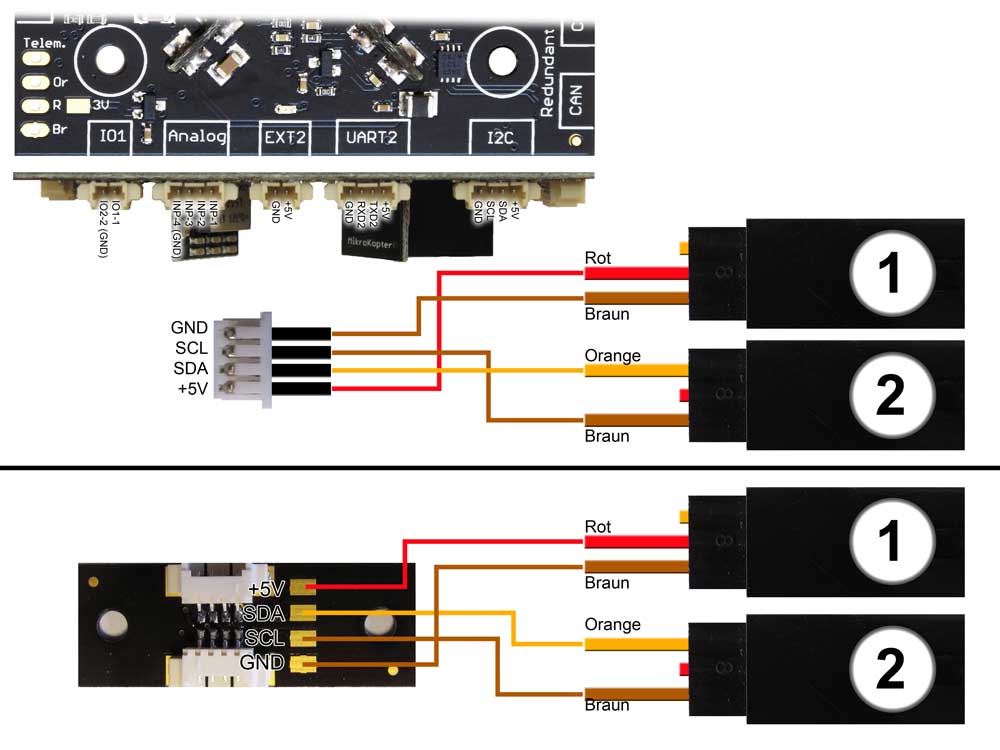
On an 3-axes gimbal you can damage external routed cable if you yaw the gimbal.
It the gimbal offers 4 free wires via the sliding contact in the yaw motor you can also route the I2C bus down to the gimbal.
In the example on the right you can see how the I2C bus can be looped through.
To make such an adapter you need:
- 1x I2C-Bus Splitter
- 2x Servo cable extension
- 1x 4pol Molex cabel
If this is done you can use on the gimbal the GimbalCtrl and also the CamCtrl at the same time.
So you use several functions over only a few cables and prevents entanglement while yawing the gimbal.
Switching outputs

Anschlussbeispiel
Optionally, up to 3 switching outputs can be used. So you can e.g. trigger a camera or switch something else.
INFO: The switching outputs are max. 100mA loadable !!!
Do you want to switch more load (z.B. LED-Streifen) please use e.g. a ExtensionPCB.
With the KopterTool you can set the switching output Out1/Out2 with a free channel.
(CamCtrl -> Out1/Out2)
The switching output "Trigger" is parallel with the "switching output 1" of your FlightCtrl.
Angle
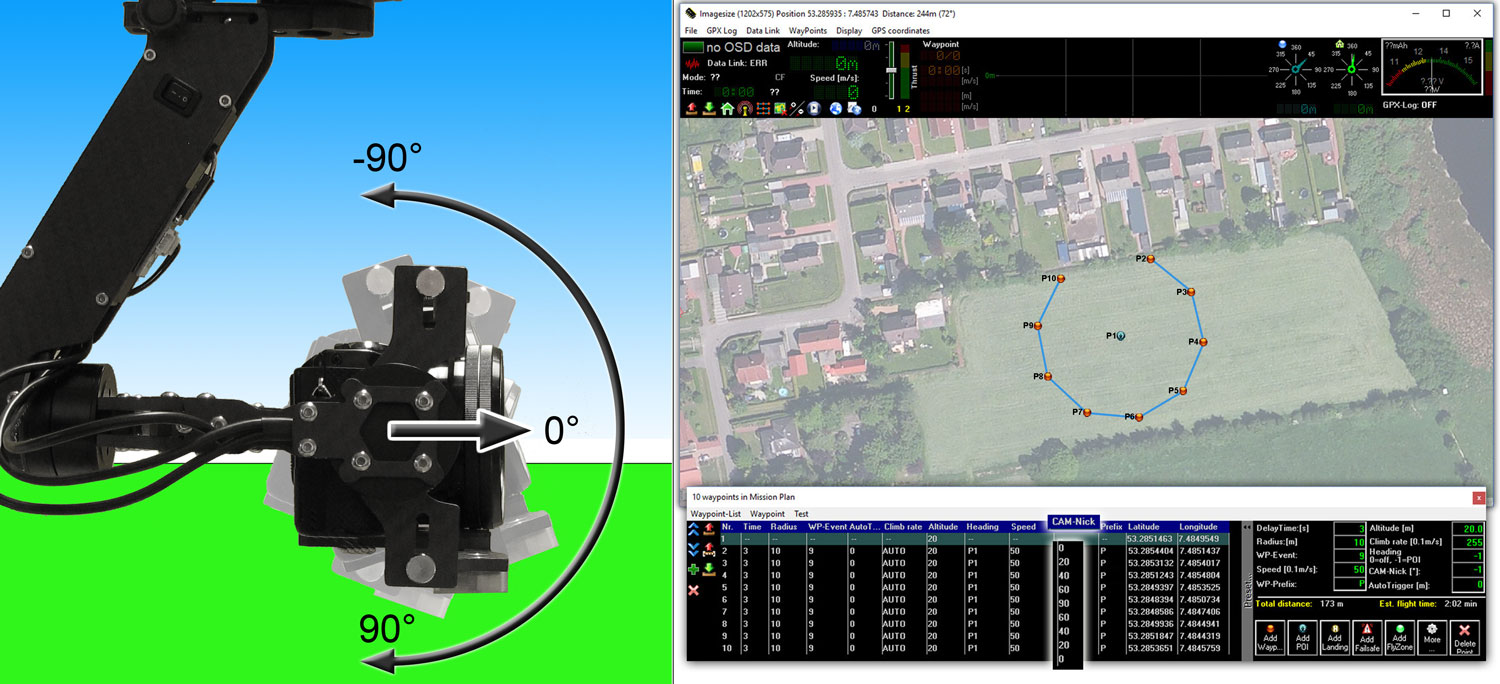
If you control a gimbal with a servo connection, the set angle (in a waypoint flight) is not the real angle. The number you set for the angle is added to the servo value.
With the GimbalCtrl you can set and use now the real angle. So when you set e.g. 90 for the angle, the gimbal will look 90° down.
LOG-File - TXT-File


The inclination of the gimbal for nick and roll in degrees is stored continuously in the LOG file in the column Gimbal.
In addition, the nick / roll angle is recorded in the extra TXT file for each triggered photo.
Particularities
On AlexMos boards type extended (first revisoins), the "Tx" port is designed low resistance.
In this case, the GimbalCtrl can not connect. Also not if the connection and the settings are correct.
On this board you can connect the GimbalCtrl with the second serial port.
Please note that you need the latest software on your AlexMos board (SW V2.66b2 or newer). With older SW the second serial port will not work..
Setup:
RC-Setting
RC_ROLL pin mode => SBGC Serial API
Hardware
Main serial port speed => 11520
RC_SERIAL port speed => 9600
UART2 port speed => 9600


Separate supply with two Lipos
The GimbalCtrl has a high-impedance protective resistor between the GND terminals. If you use now one Lipo for your copter and a seperate lipo only for your brushless gimbal you have to connect the GND of both lipos together. Otherwise the GimbalCtrl will not work.
Attention: Make sure that the polarity is correct when connecting.