
|
Größe: 17605
Kommentar:
|
← Revision 39 vom 16.04.2018 10:49 ⇥
Größe: 19332
Kommentar:
|
| Gelöschter Text ist auf diese Art markiert. | Hinzugefügter Text ist auf diese Art markiert. |
| Zeile 1: | Zeile 1: |
| #acl AdminGroup:read,write,revert dl2yak:read,write,revert All:read |
#acl AdminGroup:read,write,revert EditorsGroup:read,write,revert All:read ||<class="MK_TableNoBorder">This page as an '''PDF-Document'''? Click on that Symbol and wait a little moment... ---> ||<class="MK_TableNoBorder"><<PDFIcon>>|| |
| Zeile 6: | Zeile 6: |
| ||||||<class="MK_Nav_Header">Connect Camera|| | ||||||<class="MK_Nav_Header">Connect Camera mount + Camera|| |
| Zeile 12: | Zeile 12: |
| * {{http://mikrokopter.de/images/fra.gif}} [[fr/CameraConnect|français]] | |
| Zeile 15: | Zeile 14: |
| <<BR>><<BR>> | |
| Zeile 28: | Zeile 27: |
| * Camera mounts: [[https://www.mikrocontroller.com/index.php?main_page=index&cPath=110|Shoplink]] * !ShutterCable: [[https://www.mikrocontroller.com/index.php?main_page=product_info&cPath=110&products_id=566|Shoplink]] (Wikilink for !ShutterCable: [[ShutterCable]]) * Extension-PCB: [[https://www.mikrocontroller.com/index.php?main_page=product_info&cPath=65&products_id=576|Shoplink]] (Wikilink for Extension-PCB: [[ExtensionPCB]]) |
* Camera mounts and !ShutterCable: [[https://www.mikrocontroller.com/index.php?main_page=index&cPath=110&language=en|Shoplink]] * Extension-PCB: [[https://www.mikrocontroller.com/index.php?main_page=product_info&cPath=65&products_id=576|Shoplink]] (Wikilink for Extension-PCB: [[en/ExtensionPCB|ExtensionPCB]]) |
| Zeile 36: | Zeile 35: |
| An attached camera mount through the Kopter you can control over the FlightCtrl. <<BR>> The camera mount will be maintained over servos in Nick- and Rolldirection (depending on the camera mount).<<BR>> |
An attached camera mount through the Kopter you can control via the !FlightCtrl. <<BR>> The camera mount will be kept balanced via servos in Nick- and Rolldirection (depending on the camera mount).<<BR>> |
| Zeile 39: | Zeile 38: |
| Here you need to assign a free channel on your trasmitter to a potentiometer. That potentiometer will be set over the KopterTool to control the camera mount.<<BR>><<BR>> | Here you need to assign a free channel on your trasmitter to a potentiometer. That potentiometer will be set via the !KopterTool to control the camera mount.<<BR>><<BR>> |
| Zeile 43: | Zeile 42: |
| After the camera mount has been assembled to the Kopter you can connect the servos to the FlightCtrl.<<BR>> You need to make sure that the connector are connected correctly and in the right way: <<BR>> |
After the camera mount has been assembled to the Kopter you can connect the servos to the !FlightCtrl.<<BR>> You need to make sure that the connectors are connected correctly and in the right way: <<BR>> |
| Zeile 47: | Zeile 46: |
| [[http://gallery.mikrokopter.de/main.php?g2_view=core.DownloadItem&g2_itemId=97108&g2_serialNumber=1|{{http://gallery.mikrokopter.de/main.php?g2_view=core.DownloadItem&g2_itemId=99756&g2_serialNumber=2}}]] <<BR>> (To enlarge click on the image) <<BR>><<BR>> Connected in that way and after the calibration of the Gyros the camera mount will be hold in balance automatically over the FlightCtrl. <<BR>><<BR>> ############################################################################################################################################################################################ == Tilt control of the camera mount over the transmitter == If you want to set also the tilt of the camera mount over the transmitter you can do it over a potentiometer at your transmitter.<<BR>> HHere you can use every free channel at your transmitter. <<BR>><<BR>> '''In the following example channel 7 should be assigned to this function:''' <<BR>><<BR>> |
'''Connection !FlightCtrl V3.0''' <<BR>> [[ http://gallery3.mikrokopter.de/var/albums/intern/MK-Baugruppen/FlightCtrl/FlightCtrl-V3.0/FC_V3_0_TinyPCB2.jpg?m=1523863649 | {{ http://gallery3.mikrokopter.de/var/thumbs/intern/MK-Baugruppen/FlightCtrl/FlightCtrl-V3.0/FC_V3_0_TinyPCB2.jpg?m=1523863650 }} ]] <<BR>> '''Connection !FlightCtrl V2.x'''<<BR>> [[ http://gallery3.mikrokopter.de/var/albums/intern/MK-Baugruppen/FlightCtrl/FlightCtrl_2_5/FlightCtrl_V2-ServoNickRoll.jpg?m=1523865443 | {{ http://gallery3.mikrokopter.de/var/thumbs/intern/MK-Baugruppen/FlightCtrl/FlightCtrl_2_5/FlightCtrl_V2-ServoNickRoll.jpg?m=1523865443 }} ]] [[ http://gallery3.mikrokopter.de/var/albums/intern/sonstiges/Kamerahalter_an_FC.JPG?m=1409690164 | {{ http://gallery3.mikrokopter.de/var/thumbs/intern/sonstiges/Kamerahalter_an_FC.JPG?m=1410797629 }} ]] To enlarge click on the image <<BR>><<BR>> Connected in that way and after the calibration of the Gyros the camera mount will be hold in balance automatically via the !FlightCtrl. <<BR>><<BR>> ############################################################################################################################################################################################ == Tilt control of the camera mount via the transmitter == If you want to set also the tilt of the camera mount via the transmitter you can do it with a potentiometer at your transmitter.<<BR>> Here you can use every free channel at your transmitter. <<BR>><<BR>> '''In the following example channel 8 should be assigned to this function:''' <<BR>><<BR>> |
| Zeile 66: | Zeile 72: |
| First at all you need to assign the channel to a potentiometer at your transmitter. A describtion of the assignment you will find in the instruction manual of the transmitter.<<BR>> Assign channel 7 to a potentiometer at the transmitter: <<BR>><<BR>> {{http://gallery.mikrokopter.de/main.php?g2_view=core.DownloadItem&g2_itemId=103272&g2_serialNumber=2}} <<BR>> (Example image) <<BR>><<BR>> === Step 2 - Check function in the KopterTool === You can check in the KopterTool under "Settings" and under the tab "Channels" the function of the potentiometer.<<BR>> The further you turn the Potentiometer the further goes the peak: <<BR>><<BR>> {{http://gallery.mikrokopter.de/main.php?g2_view=core.DownloadItem&g2_itemId=103715&g2_serialNumber=1}} <<BR>><<BR>> On the left side you can see that channel 7 is assigned to the function '''"POTI3"'''. This "POTI3" will be used for later assignments:<<BR>><<BR>> {{http://gallery.mikrokopter.de/main.php?g2_view=core.DownloadItem&g2_itemId=103718&g2_serialNumber=1}} <<BR>><<BR>> === Step 3 - Assign Switch Output === So that the camera mount reacts to that channel you need to assign channel 7 to the Nick-Output of the camera mount (POTI3): <<BR>><<BR>> {{http://gallery.mikrokopter.de/main.php?g2_view=core.DownloadItem&g2_itemId=103720&g2_serialNumber=1}} <<BR>><<BR>> After saving that setting you are able now to tilt the camera mount additional and manually over the potentiometer at your transmitter. <<BR>><<BR>> If the camera mount is now moving into the wrong direction while moving the Kopter you should set the hook at "invert direction".<<BR>><<BR>> '''__TIPP__''' <<BR>> |
First at all you need to assign the channel 8 to a potentiometer at your transmitter. A description of the assignment you will find in the instruction manual of the transmitter.<<BR>> <<BR>><<BR>> === Step 2 - Assign Switch Output === So that the camera mount reacts to that channel you need to assign channel 8 (in this example channel 8 is on "POTI1") to the Nick-Output of the camera mount : <<BR>><<BR>> [[ http://gallery3.mikrokopter.de/var/albums/intern/MK-Tool/Setting/Camera/EN_Camera.jpg?m=1499940122 | {{ http://gallery3.mikrokopter.de/var/thumbs/intern/MK-Tool/Setting/Camera/EN_Camera.jpg?m=1499940122 }} ]] <<BR>><<BR>> After saving that setting you are able now to tilt the camera mount additional and manually with the potentiometer at your transmitter. <<BR>> ~-(INFO: the servo outputs are only active after activating the copter (throttle up + yaw left))-~<<BR>><<BR>> If the camera mount is now moving into the wrong direction while moving the Kopter you should set the checkmark at "invert direction".<<BR>><<BR>> '''__HINT__''' <<BR>> |
| Zeile 110: | Zeile 102: |
| If you want to control the camera mount over a second transmitter you can do it i.e. over the function TrainerMode (teacher/student).<<BR>> A describtion with examples you can find here: [[en/TrainerMode|Trainer Mode]] |
If you want to control the camera mount via a second transmitter you can do it i.e. with the function !TrainerMode (teacher/student).<<BR>> A description with examples you can find here: [[en/TrainerMode|Trainer Mode]] |
| Zeile 121: | Zeile 113: |
| The additional PCB (!ShutterCable or Extension-PCB) will be connected between the FlightCtrl and the camera.<<BR>> On the FlightCtrl there are two switch outputs available. For the camera you use the input of the remote controlchinch.<<BR>> |
The additional PCB (!ShutterCable or Extension-PCB) will be connected between the !FlightCtrl and the camera.<<BR>> On the !FlightCtrl there are two switch outputs available. For the camera you use the input of the remote controlchinch.<<BR>> |
| Zeile 125: | Zeile 117: |
| '''__Tipp__'''<<BR>> | '''__Hint__'''<<BR>> |
| Zeile 130: | Zeile 122: |
| {{http://gallery.mikrokopter.de/main.php?g2_view=core.DownloadItem&g2_itemId=71747}}<<BR>> | [[ http://gallery3.mikrokopter.de/var/albums/intern/MK-Baugruppen/Shuttercable/SchutterCable_Cam.jpg?m=1409675275 | {{ http://gallery3.mikrokopter.de/var/thumbs/intern/MK-Baugruppen/Shuttercable/SchutterCable_Cam.jpg?m=1410809002 }} ]]<<BR>> |
| Zeile 137: | Zeile 129: |
| The !ShutterCable can be connected to output 1 or output 2 of the FlightCtrl (SV2): <<BR>><<BR>> [[http://gallery.mikrokopter.de/main.php?g2_view=core.DownloadItem&g2_itemId=97165&g2_serialNumber=1|{{http://gallery.mikrokopter.de/main.php?g2_view=core.DownloadItem&g2_itemId=99755&g2_serialNumber=2}}]] [[http://gallery.mikrokopter.de/main.php?g2_view=core.DownloadItem&g2_itemId=97128&g2_serialNumber=3|{{http://gallery.mikrokopter.de/main.php?g2_view=core.DownloadItem&g2_itemId=99754&g2_serialNumber=2}}]] |
The !ShutterCable can be connected to output 1 or output 2 of the !FlightCtrl (SV2): <<BR>><<BR>> [[ http://gallery3.mikrokopter.de/var/albums/intern/sonstiges/FC_Anschluss_ShutterCable-Out1.jpg?m=1409686979 | {{ http://gallery3.mikrokopter.de/var/thumbs/intern/sonstiges/FC_Anschluss_ShutterCable-Out1.jpg?m=1410817351 }} ]] [[ http://gallery3.mikrokopter.de/var/albums/intern/sonstiges/FC_Anschluss_ShutterCable.jpg?m=1409686960 | {{ http://gallery3.mikrokopter.de/var/thumbs/intern/sonstiges/FC_Anschluss_ShutterCable.jpg?m=1410807047 }} ]] |
| Zeile 147: | Zeile 139: |
| The Extension-PCB will be also connected directly to the switch outputs (SV2) of the FlightCtrl. Over the Extension-PCB you can use both switch outputs to the same time.<<BR>> | The Extension-PCB will be also connected directly to the switch outputs (SV2) of the !FlightCtrl. Via the Extension-PCB you can use both switch outputs to the same time.<<BR>> |
| Zeile 152: | Zeile 144: |
| [[http://gallery.mikrokopter.de/main.php?g2_view=core.DownloadItem&g2_itemId=97123&g2_serialNumber=2|{{http://gallery.mikrokopter.de/main.php?g2_view=core.DownloadItem&g2_itemId=99760&g2_serialNumber=4}}]] | [[ http://gallery3.mikrokopter.de/var/albums/intern/sonstiges/Extension-PCB/FC_Anschluss_ExtensionPCB.jpg?m=1409686958 | {{ http://gallery3.mikrokopter.de/var/thumbs/intern/sonstiges/Extension-PCB/FC_Anschluss_ExtensionPCB.jpg?m=1410804748 }} ]] |
| Zeile 159: | Zeile 151: |
| = Trigger camera over a button = So that you can trigger the camera over one of the examples described above you need to set an appropriate channel.<<BR>> |
= Trigger camera with a button = So that you can trigger the camera with one of the examples described above you need to set an appropriate channel.<<BR>> |
| Zeile 169: | Zeile 161: |
| First at all you need to assign a button at the transmitter for that channel. A describtion for assigning channels you will find in the instruction manual of the transmitter.<<BR>> | First at all you need to assign a button at the transmitter for that channel. A description for assigning channels you will find in the instruction manual of the transmitter.<<BR>> |
| Zeile 173: | Zeile 165: |
| {{http://gallery.mikrokopter.de/main.php?g2_view=core.DownloadItem&g2_itemId=103284&g2_serialNumber=2}} | [[ http://gallery3.mikrokopter.de/var/albums/intern/Sender-Stick/Sender_SW_Taster.jpg?m=1409689147 | {{ http://gallery3.mikrokopter.de/var/thumbs/intern/Sender-Stick/Sender_SW_Taster.jpg?m=1410818365 }} ]] |
| Zeile 181: | Zeile 173: |
| In the KopterTool you can check under "Settings" and under the tab "Channels" the function of the button.<<BR>> | In the !KopterTool you can check under "Settings" and under the tab "Channels" the function of the button.<<BR>> |
| Zeile 184: | Zeile 176: |
| {{http://gallery.mikrokopter.de/main.php?g2_view=core.DownloadItem&g2_itemId=103676&g2_serialNumber=1}} | [[ http://gallery3.mikrokopter.de/var/albums/intern/MikroKopterTool/KopterTool_Einstellungen/Details/Taster%20ON-OFF.jpg?m=1409689332 | {{ http://gallery3.mikrokopter.de/var/thumbs/intern/MikroKopterTool/KopterTool_Einstellungen/Details/Taster%20ON-OFF.jpg?m=1410796882 }} ]] |
| Zeile 189: | Zeile 181: |
| {{http://gallery.mikrokopter.de/main.php?g2_view=core.DownloadItem&g2_itemId=103634&g2_serialNumber=1}} | [[ http://gallery3.mikrokopter.de/var/albums/intern/MikroKopterTool/KopterTool_Einstellungen/Details/Poti_Kameraausl_ser.jpg?m=1409689314 | {{ http://gallery3.mikrokopter.de/var/thumbs/intern/MikroKopterTool/KopterTool_Einstellungen/Details/Poti_Kameraausl_ser.jpg?m=1410812608 }} ]] |
| Zeile 197: | Zeile 189: |
| Under "Bitmask" you need to activate only the first casket and the others will be still deactivated. Here the switch output "OFF" is only with a pushed button "ON".<<BR>> In addition the low-voltage warning for that output will bhe deactivated. <<BR>> |
Under "Bitmask" you need to activate only the first box and the others will be still deactivated. Here the switch output "OFF" is only with a pushed button "ON".<<BR>> In addition the low-voltage warning for that output will be deactivated. <<BR>> |
| Zeile 201: | Zeile 193: |
| {{http://gallery.mikrokopter.de/main.php?g2_view=core.DownloadItem&g2_itemId=103630&g2_serialNumber=2}} | [[ http://gallery3.mikrokopter.de/var/albums/intern/MikroKopterTool/KopterTool_Einstellungen/Details/bit.jpg?m=1418984655 | {{ http://gallery3.mikrokopter.de/var/thumbs/intern/MikroKopterTool/KopterTool_Einstellungen/Details/bit.jpg?m=1418984656 }} ]] |
| Zeile 207: | Zeile 199: |
| = Trigger camera continuously = | = Trigger camera continuously after starting the motors = |
| Zeile 211: | Zeile 203: |
| In addition you need to set the desired switch sequence over the casket under the tab "Bitmask".<<BR>><<BR>> | In addition you need to set the desired switch sequence via the box under the tab "Bitmask".<<BR>><<BR>> |
| Zeile 222: | Zeile 214: |
| * Green casket behind the Bitmask = OFF <<BR>> {{http://gallery.mikrokopter.de/main.php?g2_view=core.DownloadItem&g2_itemId=103678&g2_serialNumber=1}} <<BR>><<BR>> Throughout the number 100 each casket has a switch period of 1 second (100x10ms = 1sec.). <<BR>> Is a casket under "Bitmask" "ON" the output will be switched on for the entered time. Is a casket "OFF" the output will be off for that time.<<BR>> If you checkmark under "only active after starting the motors" you can determine with the appearing green casket behind "Bitmask" wether the function should be done with a running or a not running motor.<<BR>> Here we leave the casket off so that the function os active with a running motor. <<BR>><<BR>> You can enter also different time values under "Timing" and switch the caskets under "Bitmask" ON/OFF in any order. |
* Green box behind the Bitmask = OFF <<BR>> [[ http://gallery3.mikrokopter.de/var/albums/intern/MikroKopterTool/KopterTool_Einstellungen/Details/bit2.jpg?m=1418985103 | {{ http://gallery3.mikrokopter.de/var/thumbs/intern/MikroKopterTool/KopterTool_Einstellungen/Details/bit2.jpg?m=1418985103 }} ]] <<BR>><<BR>> Throughout the number 100 each box has a switch period of 1 second (100x10ms = 1sec.). <<BR>> Is a box under "Bitmask" "ON" the output will be switched on for the entered time. Is a box "OFF" the output will be off for that time.<<BR>> If you checkmark under "only active after starting the motors" you can determine with the appearing green box behind "Bitmask" wether the function should be done with a running or a not running motor.<<BR>> Here we leave the box off so that the function is active with a running motor. <<BR>><<BR>> You can enter also different time values under "Timing" and switch the boxes under "Bitmask" ON/OFF in any order.<<BR>><<BR>> Here some examples with different times: <<BR>> ||||||||||||||||||<class="MK_THeader" tablewidth="750px">{{http://gallery.mikrokopter.de/main.php?g2_view=core.DownloadItem&g2_itemId=103798&g2_serialNumber=1}}|| ||<class="MK_TBody" width="150px">Bitmask = ||<#B4DC6C:>ON||<#FF7537:>OFF||<#B4DC6C:>ON||<#FF7537:>OFF||<#B4DC6C:>ON||<#FF7537:>OFF||<#B4DC6C:>ON||<#FF7537:>OFF|| ||<class="MK_TBody">Timing = 50 ||<#B4DC6C:>0,5sek<<BR>>on||<#FF7537:>0,5sek<<BR>>off||<#B4DC6C:>0,5sek<<BR>>on||<#FF7537:>0,5sek<<BR>>off||<#B4DC6C:>0,5sek<<BR>>on||<#FF7537:>0,5sek<<BR>>off||<#B4DC6C:>0,5sek<<BR>>on||<#FF7537:>0,5sek<<BR>>off|| ||<class="MK_TBody">Timing = 100 ||<#B4DC6C:>1sek<<BR>>on||<#FF7537:>1sek<<BR>>off||<#B4DC6C:>1sek<<BR>>on||<#FF7537:>1sek<<BR>>off||<#B4DC6C:>1sek<<BR>>on||<#FF7537:>1sek<<BR>>off||<#B4DC6C:>1sek<<BR>>on||<#FF7537:>1sek<<BR>>off|| ||<class="MK_TBody">Timing = 200 ||<#B4DC6C:>2sek<<BR>>on||<#FF7537:>2sek<<BR>>off||<#B4DC6C:>2sek<<BR>>on||<#FF7537:>2sek<<BR>>off||<#B4DC6C:>2sek<<BR>>on||<#FF7537:>2sek<<BR>>off||<#B4DC6C:>2sek<<BR>>on||<#FF7537:>2sek<<BR>>off|| |||||||||||||||||| ||<class="MK_TBody"|2(>Out1 is:||<#B4DC6C:>ON ->||<#FF7537:>OFF ->||<#B4DC6C:>ON ->||<#FF7537:>OFF ->||<#B4DC6C:>ON ->||<#FF7537:>OFF ->||<#B4DC6C:>ON ->||<#FF7537:>OFF|| ||{{http://gallery.mikrokopter.de/main.php?g2_view=core.DownloadItem&g2_itemId=103853&g2_serialNumber=2}}||<:-6>{{http://gallery.mikrokopter.de/main.php?g2_view=core.DownloadItem&g2_itemId=103850&g2_serialNumber=2}}||{{http://gallery.mikrokopter.de/main.php?g2_view=core.DownloadItem&g2_itemId=103847&g2_serialNumber=2}}|| |
| Zeile 238: | Zeile 242: |
| == Beispiel 2 - Kamera eingestellt auf Reihenaufnahme == In diesem Beispiel steht die Kamera auf '''Serienbildaufnahme''' oder '''Reihenaufnahme''' und nimmt solange der (Fern)Auslöser gedrückt ist Fotos auf.<<BR>> Hierbei muss der Schaltausgang für die Flugdauer ununterbrochen geschaltet sein. Dies soll nach starten der Motoren passieren.<<BR>><<BR>> Dazu stellen wir folgendes ein: <<BR>> * Ausgang1 Timing: 100 (es kann auch eine beliebige andere Zahl sein) * Ausgang1 Bitmask: Alle Felder auf AN * "nur nach Start der Motoren aktiv" = Aktiviert * Grünes Kästchen hinter der Bitmask = AUS <<BR>> {{http://gallery.mikrokopter.de/main.php?g2_view=core.DownloadItem&g2_itemId=103681&g2_serialNumber=2}} <<BR>><<BR>> In diesem Fall ist es egal, was für eine Zahl unter "Timing" eingetragen wird. Da alle Kästchen an sind, wird die "Funktion" ununterbrochen ausgeführt und der Ausgang ebenfalls ununterbrochen eingeschaltet. <<BR>> Da "nur nach Start der Motoren aktiv" aktiviert ist, wird der Schaltvorgang beim Einschalten der Motoren gestartet und beim Ausschalten der Motoren beendet. == Beispiel 3 - Kamera eingestellt auf Reihenaufnahme + Schalter am Sender == In diesem Beispiel steht die Kamera auf '''Serienbildaufnahme''' oder '''Reihenaufnahme''' und nimmt solange der (Fern)Auslöser gedrückt ist Fotos auf.<<BR>> Diesmal soll aber über einen Schalter am Sender die Reihenaufnahmen gestartet und gestoppt werden.<<BR>><<BR>> Das vorgehen ist ähnlich wie weiter oben unter "Kamera über Taster Auslösen" beschrieben. <<BR>> Für dieses Beispiel nutzen wir wieder den Kanal 12, allerdings mit einer kleinen Änderungen, es wird ein Schalter anstelle eines Tasters genutzt: <<BR>><<BR>> === Schritt 1 - Schalter am Sender zuweisen === Zuerst muss am Sender dem Kanal ein '''Schalter''' zugeordnet werden. Eine Erklärung über die Zuweisung von Kanälen findet sich in der Anleitung des Senders.<<BR>> Schalter am Sender mit Kanal 12 belegen: <<BR>><<BR>> {{http://gallery.mikrokopter.de/main.php?g2_view=core.DownloadItem&g2_itemId=103267&g2_serialNumber=2}} <<BR>> (Beispielfoto) <<BR>><<BR>> === Schritt 2 - Funktion im KopterTool überprüfen === Im KopterTool kann in den "Einstellungen" unter dem Reiter "Kanäle" die Funktion des Schalters überprüft werden.<<BR>> Wird der Schalter nicht betätigt, ist der entsprechende Balken (hier Kanal 12) unten. Wird der Schalter betätigt, ist der Balken oben: <<BR>><<BR>> {{http://gallery.mikrokopter.de/main.php?g2_view=core.DownloadItem&g2_itemId=103676&g2_serialNumber=1}} <<BR>><<BR>> Auf der linken Seite sieht man, dass der Kanal 12 der Funktion '''"POTI8"''' zugeteilt ist. Dieses "POTI8" wird für die späteren Zuteilungen benötigt:<<BR>><<BR>> {{http://gallery.mikrokopter.de/main.php?g2_view=core.DownloadItem&g2_itemId=103634&g2_serialNumber=1}} <<BR>><<BR>> === Schritt 3 - Schaltausgang zuweisen === Damit der Schaltausgang, an dem das Shuttercable (oder das Extension-PCB) angeschlossen ist, bei Betätigung des Schalters schaltet und somit die Kamera auslöst, wird diesem Ausgang das "POTI8" (Kanal12) zugewiesen.<<BR>> Diese Einstellung wird in den Einstellungen unter dem Reiter "Ausgänge" vorgenommen.<<BR>><<BR>> Unter "Bitmaske" wird das erste Kästchen aktiviert und die restlichen deaktiviert. Ist der Schalter am Sender auf "AUS" ist ebenfalls der Schaltausgang "AUS". Ist der Schalter aber "AN" ist der Schaltausgang ebenfalls dauernd an.<<BR>> Zusätzlich wird die Unterspannungswarnung für den Ausgang deaktiviert. <<BR>> Lässt man die Unterspannungswarnung für diesen Ausgang aktiv, würde der Ausgang bei einer Akkuwarnung ebenfalls laufend aktiviert werden und die Kamera so ungewollt auslösen.<<BR>><<BR>> {{http://gallery.mikrokopter.de/main.php?g2_view=core.DownloadItem&g2_itemId=103692&g2_serialNumber=1}} <<BR>><<BR>> ############################################################################################################################################################################################ = Automatischen Auslösen über das Wegpunkt-Event = Alternativ zum Auslösen über einen Taster/Schalter am Sender, besteht auch die Möglichkeit, die Kamera über das Wegpunkt-Event (WP-Event) auszulösen.<<BR>> Dieses WP-Event wird beim Wegpunkteflug genutzt. Hierbei kann dann pro Wegpunkt die Kamera individuell und automatisch ausgelöst werden.<<BR>><<BR>> Um diese Funktion nutzen zu können, wird alles so eingestellt, wie unter "Kamera über Taster Auslösen" beschrieben.<<BR>> Damit allerdings der Schaltausgang auf das WP-Event reagiert, muss hier unter "Kanäle" dem betreffenden "POTI" dieses WP-Event zugeteilt werden: <<BR>><<BR>> {{http://gallery.mikrokopter.de/main.php?g2_view=core.DownloadItem&g2_itemId=103727&g2_serialNumber=1}} |
== Example 2 - Camera set to Continuous Shootings == In this example the camera is set to '''Continuous Shooting''' and takes images as long as the motors are on.<<BR>> Here it is necessary that the output is continuously switched on during the complete flight time. That should be active after starting the motors.<<BR>><<BR>> For that we need to set as follows: <<BR>> * Output1 Timing: 100 (other numbers are also possible) * Output1 Bitmask: All boxes ON * "only active after starting the motors" = Activated * Green box behind the Bitmask = OFF <<BR>> [[ http://gallery3.mikrokopter.de/var/albums/intern/MikroKopterTool/KopterTool_Einstellungen/Details/bit3.jpg?m=1418985438 | {{ http://gallery3.mikrokopter.de/var/thumbs/intern/MikroKopterTool/KopterTool_Einstellungen/Details/bit3.jpg?m=1418985438 }} ]] <<BR>><<BR>> In this case it doesn't matter what number is entered under "Timing". For that reason that all boxes are on this "Funktion" will be done continuously and also the output is continuously switched on. <<BR>> So that "only active after starting the motors" is activated the switching operation will be started while starting the motors and been stopped while switching the motors off. ############################################################################################################################################################################################ = Trigger automatically via the WayPoint-Event = Alternatively to trigger via a button/switch at your transmitter you have the opportunity to trigger the camrea via the !WayPoint-Event (WP-Event).<<BR>> The WP-Event will be used for the !WayPoint-Flight. Here you can trigger the camera individually and automatically for each !WayPoint.<<BR>><<BR>> To use this function you should activate the function "combine with WP-Event": <<BR>><<BR>> [[ http://gallery3.mikrokopter.de/var/albums/intern/MikroKopterTool/KopterTool_Einstellungen/Details/bit4.jpg?m=1418986923 | {{ http://gallery3.mikrokopter.de/var/thumbs/intern/MikroKopterTool/KopterTool_Einstellungen/Details/bit4.jpg?m=1418986924 }} ]] |
| Zeile 322: | Zeile 276: |
| A describtion of the !WayPoint-Eventyou can find here: WaypointEvent | A description of the !WayPoint-Event you can find here: [[en/WaypointEvent|WaypointEvent]] ############################################################################################################################################################################################ = Align Camera = The camera can be adjusted either way manually via a potentiometer (see ''"Tilt control of the camera mount via the transmitter"'')<<BR>> or automatically during the !WayPoint-Flight.<<BR>><<BR>> For the automatic tilt of the camera mount you can assign degree numbers for the tilt and for each !WayPoint (see [[en/MikroKopterTool-OSD#WayPoints_-_Defaults]]). <<BR>> The 0°-Position of the camera you can determine by yourself. The set up will be done before starting the Kopter through the view direction of the camera before the start.<<BR>><<BR>> Before starting the camera should be aligned straight.<<BR>><<BR>> [[ http://gallery3.mikrokopter.de/var/albums/intern/sonstiges/Kamera%200.jpg?m=1409689622 | {{ http://gallery3.mikrokopter.de/var/thumbs/intern/sonstiges/Kamera%200.jpg?m=1410793971 }} ]]<<BR>><<BR>> If the camera should tilt by 90° downwards for this !WayPoint-Flight those 90° will be counted to the 0°-Offset: <<BR>><<BR>> [[ http://gallery3.mikrokopter.de/var/albums/intern/sonstiges/Kamera%200_-90.jpg?m=1409689620 | {{ http://gallery3.mikrokopter.de/var/thumbs/intern/sonstiges/Kamera%200_-90.jpg?m=1410789103 }} ]]<<BR>><<BR>> If you let the camera point a little bit upwards before the start is that direction the 0°-Offset: <<BR>><<BR>> [[ http://gallery3.mikrokopter.de/var/albums/intern/sonstiges/Kamera%200_-90_-_2.jpg?m=1409689621 | {{ http://gallery3.mikrokopter.de/var/thumbs/intern/sonstiges/Kamera%200_-90_-_2.jpg?m=1410802507 }} ]]<<BR>><<BR>> If the camera points a little bit downwards before the start is that direction the 0°-Offset. |
This page as an PDF-Document? Click on that Symbol and wait a little moment... ---> |
 |
Connect Camera mount + Camera |

Inhaltsverzeichnis
Prolog
With the MikroKopter you can also carry a camera. Depending on the size of the camrea you can use an appropriate camera mount device.
If you want to trigger the camera from a distance you need to have here an additional module. That can be in example the ShutterCable or the Extension-PCB.
Here now the links for the needed parts:
Camera mounts and ShutterCable: Shoplink
Extension-PCB: Shoplink (Wikilink for Extension-PCB: ExtensionPCB)
Connection and Control of the Camera Mount
An attached camera mount through the Kopter you can control via the FlightCtrl.
The camera mount will be kept balanced via servos in Nick- and Rolldirection (depending on the camera mount).
If you want to adjust the tilt of the camera mount further from the ground by the transmitter it is also possible.
Here you need to assign a free channel on your trasmitter to a potentiometer. That potentiometer will be set via the KopterTool to control the camera mount.
Connection of the camera mount to the FlightCtrl
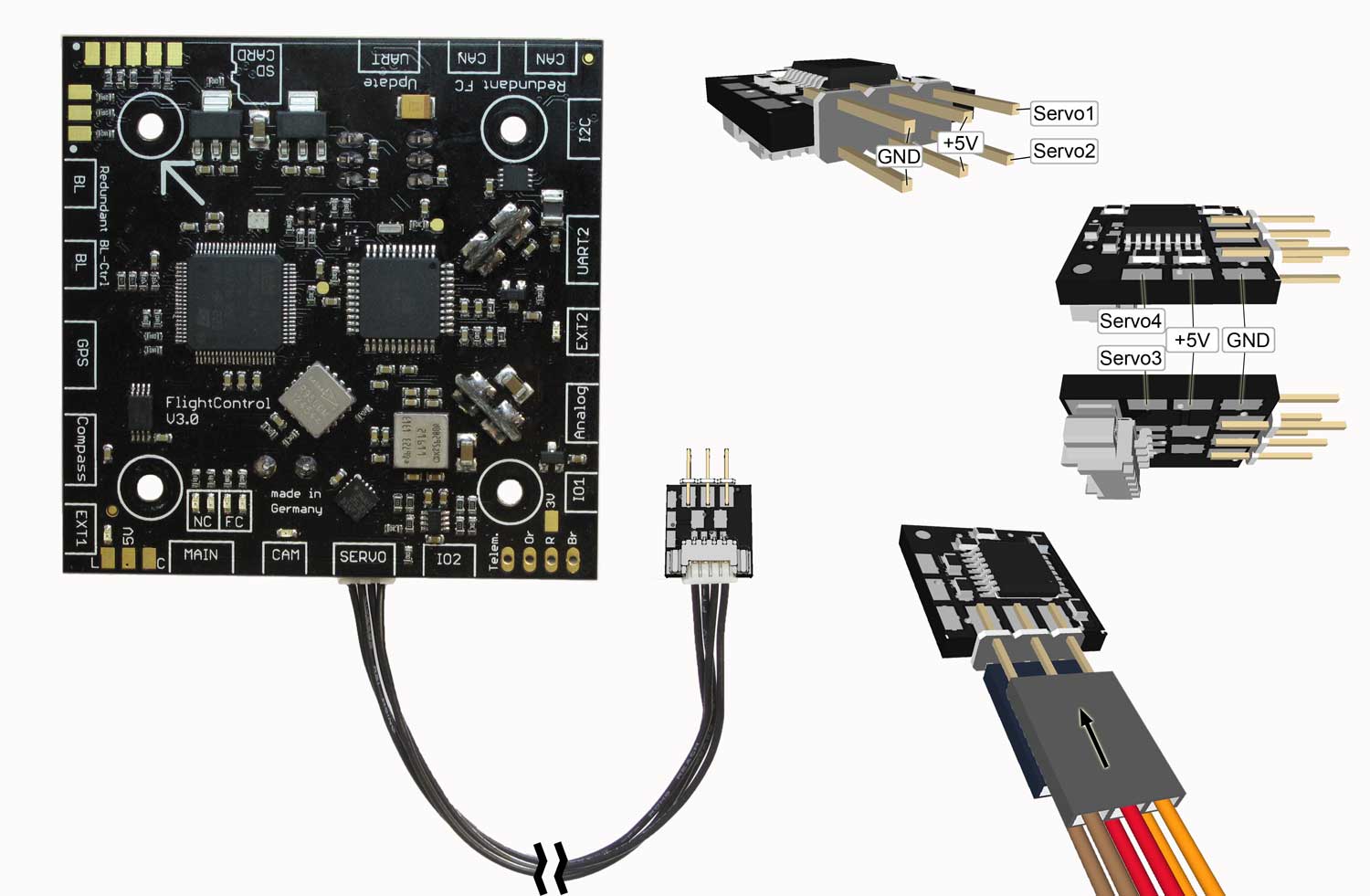
After the camera mount has been assembled to the Kopter you can connect the servos to the FlightCtrl.
You need to make sure that the connectors are connected correctly and in the right way:
(GND= Brown, +5V= Red, Signal= Orange)
Connection FlightCtrl V3.0
Connection FlightCtrl V2.x
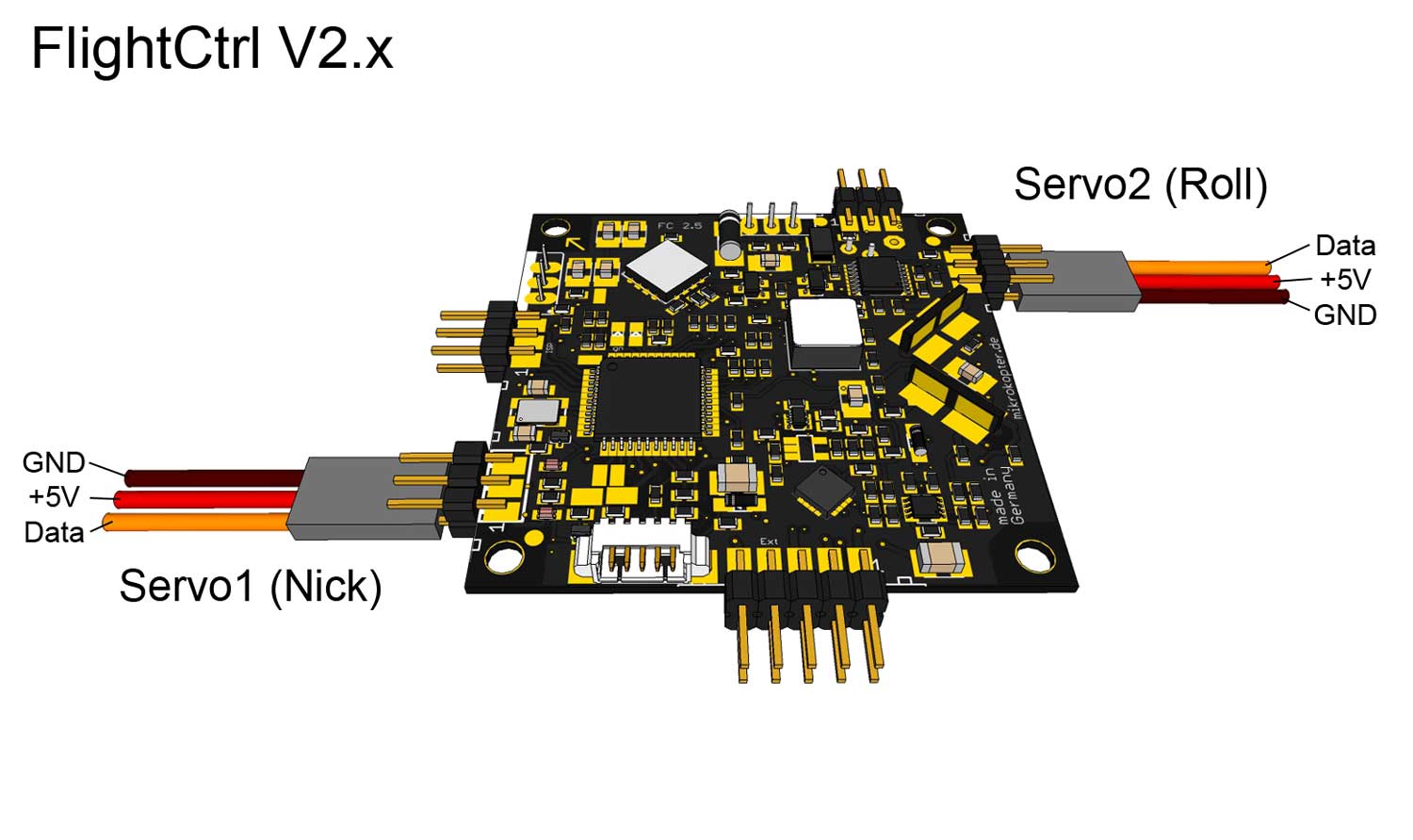
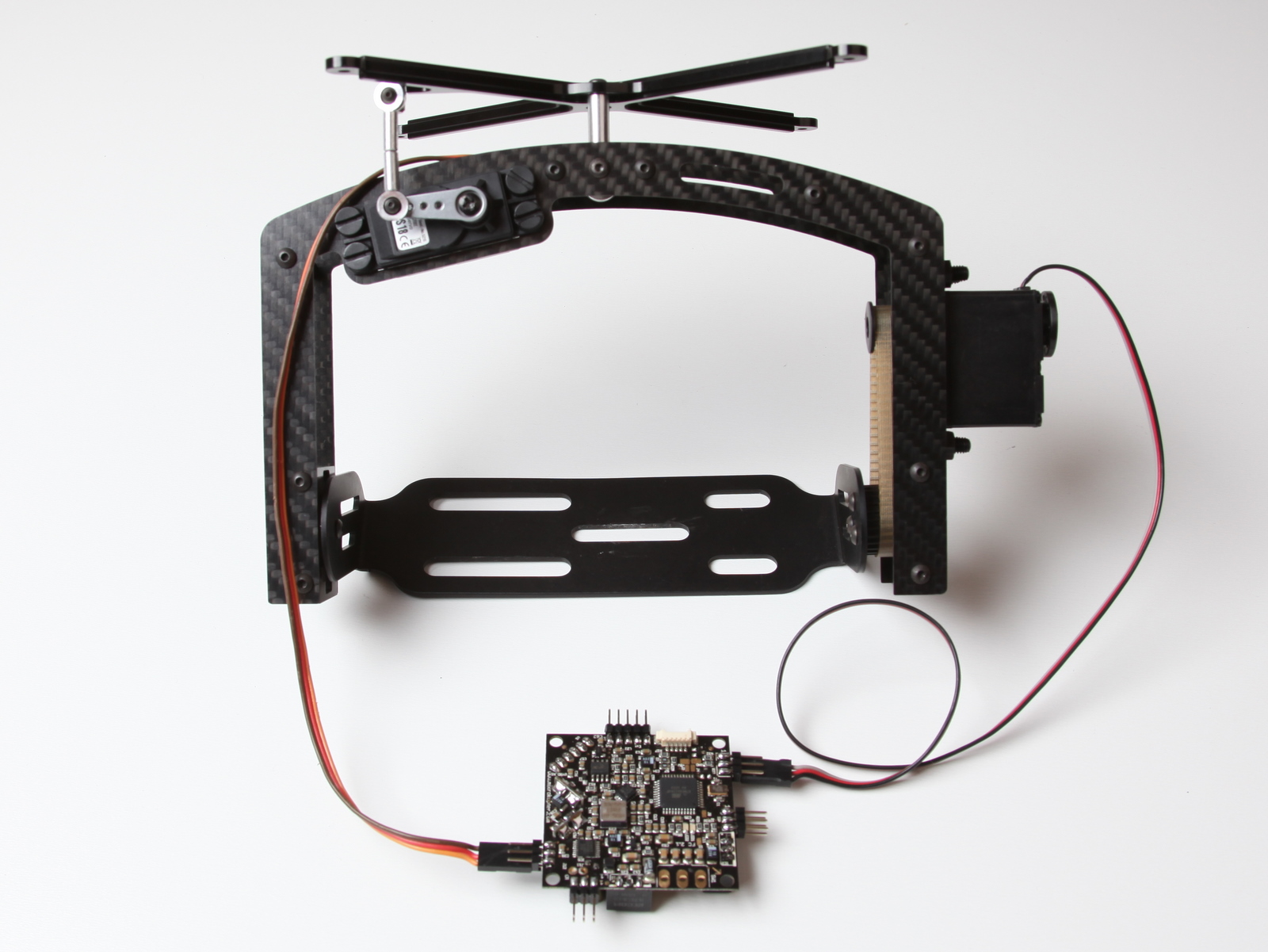
To enlarge click on the image
Connected in that way and after the calibration of the Gyros the camera mount will be hold in balance automatically via the FlightCtrl.
Tilt control of the camera mount via the transmitter
If you want to set also the tilt of the camera mount via the transmitter you can do it with a potentiometer at your transmitter.
Here you can use every free channel at your transmitter.
In the following example channel 8 should be assigned to this function:
Step 1 - Assign Potentiometer at your transmitter
First at all you need to assign the channel 8 to a potentiometer at your transmitter.
A description of the assignment you will find in the instruction manual of the transmitter.
Step 2 - Assign Switch Output
So that the camera mount reacts to that channel you need to assign channel 8 (in this example channel 8 is on "POTI1") to the Nick-Output of the camera mount :
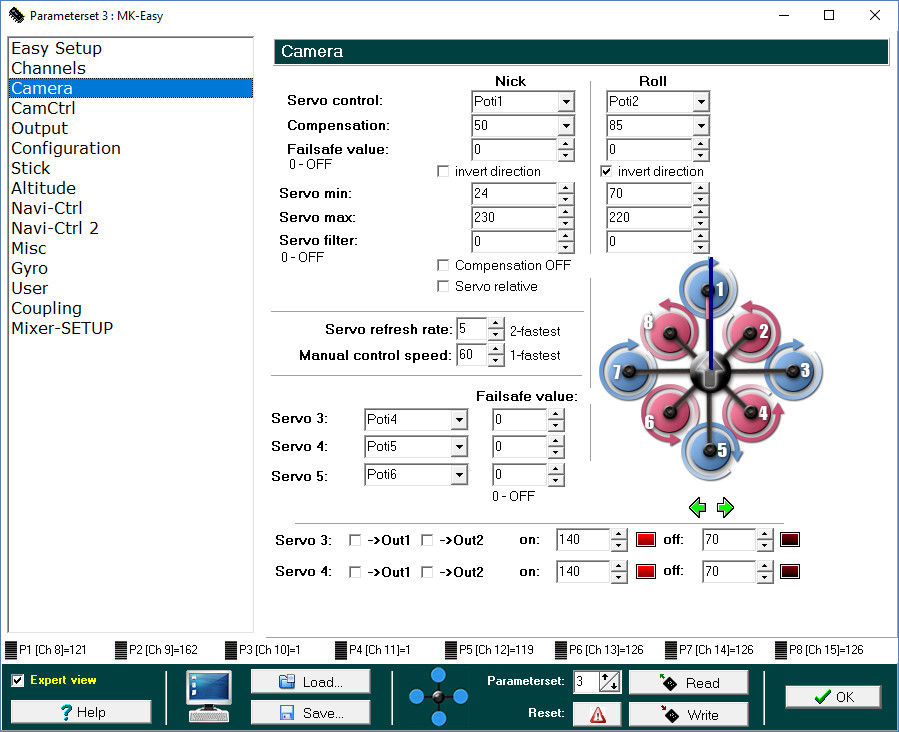
After saving that setting you are able now to tilt the camera mount additional and manually with the potentiometer at your transmitter.
(INFO: the servo outputs are only active after activating the copter (throttle up + yaw left))
If the camera mount is now moving into the wrong direction while moving the Kopter you should set the checkmark at "invert direction".
HINT
So that the camera mount is straight under the Kopter after the calibration of the gyros you can adjust the value "Servo control" for Roll manually.
Alternatively you can also use a potentiometer at your transmitter. Here you need to assign an additional free channel to a second potentiometer at the transmitter.
That channel (POTI) will be entered under Roll.
INFO
If you want to control the camera mount via a second transmitter you can do it i.e. with the function TrainerMode (teacher/student).
A description with examples you can find here: Trainer Mode
Examples for connections - Trigger camera
The additional PCB (ShutterCable or Extension-PCB) will be connected between the FlightCtrl and the camera.
On the FlightCtrl there are two switch outputs available. For the camera you use the input of the remote controlchinch.
With the ShutterCable is already a 3.5mm jack included which can be used with the most of the cameras.
Hint
If you use a camera with an other jack you can solder also a suitable connection cable to the ShutterCable or to the Extension-PCB.
The connection could look in that way:
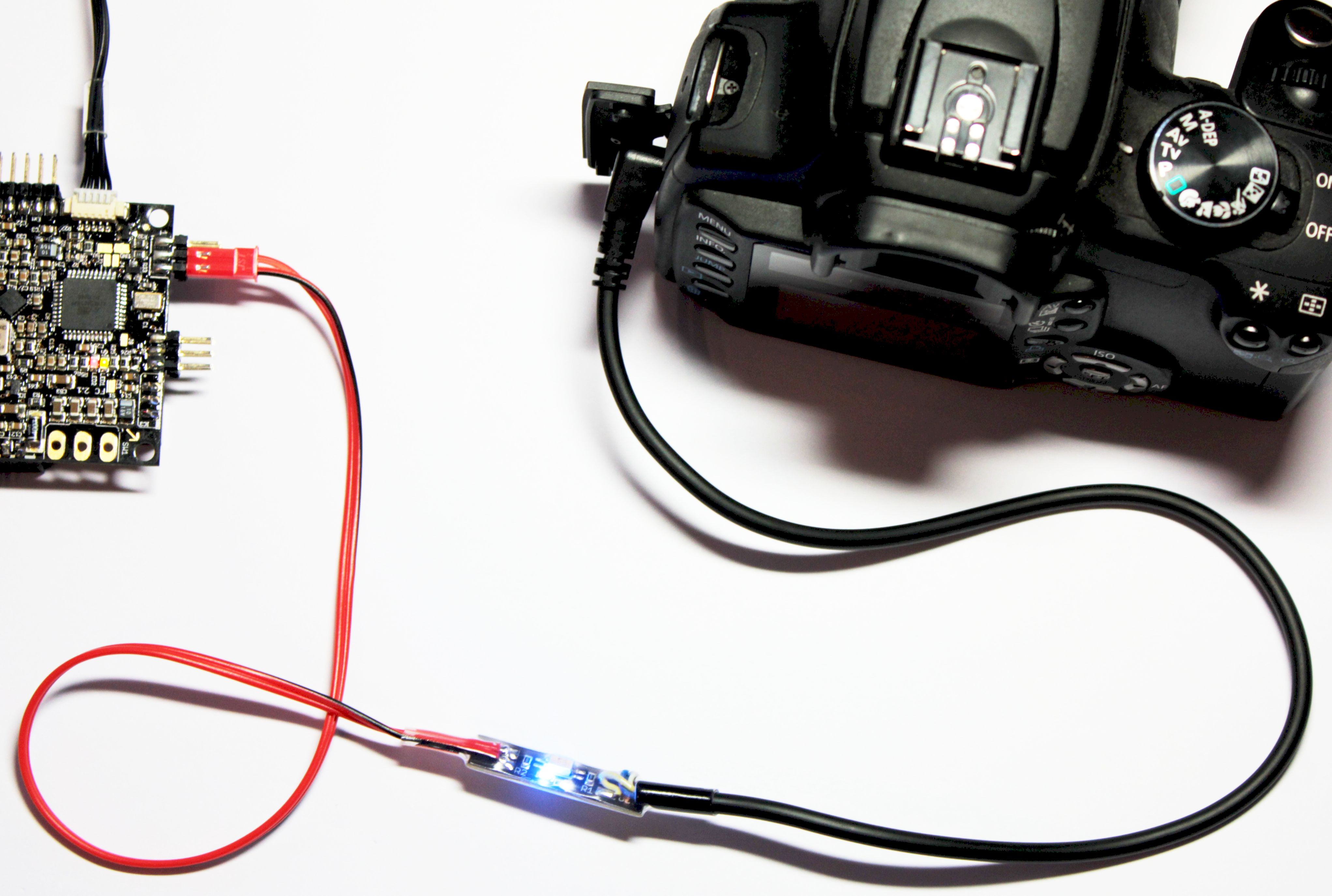
(Example view with the Shuttercable)
Connection example ShutterCable
The ShutterCable can be connected to output 1 or output 2 of the FlightCtrl (SV2):
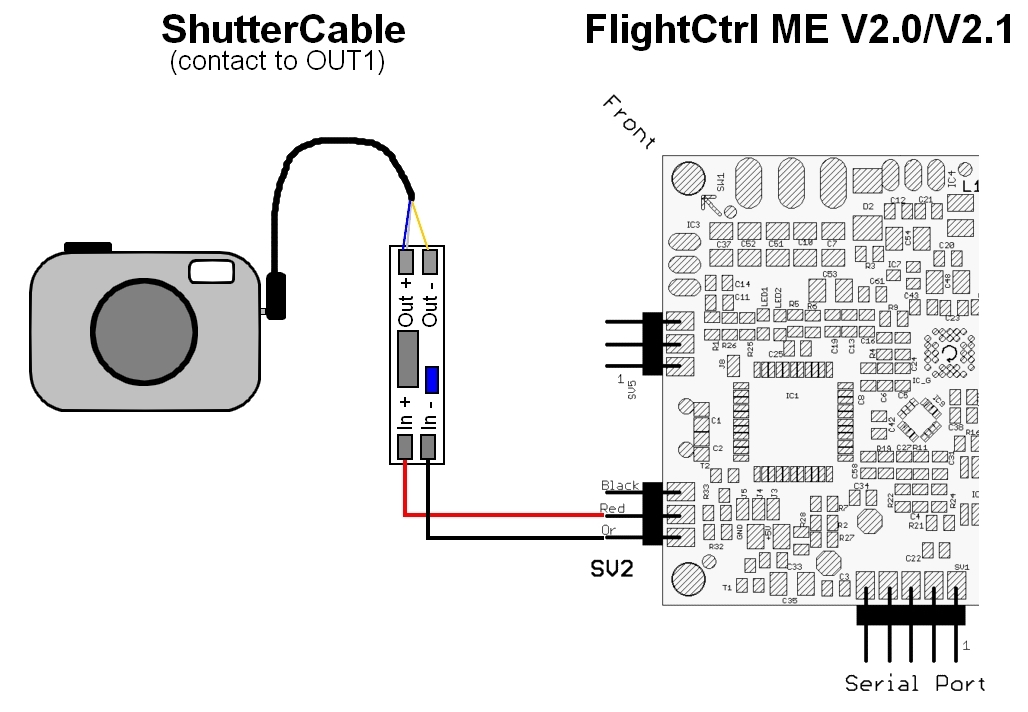
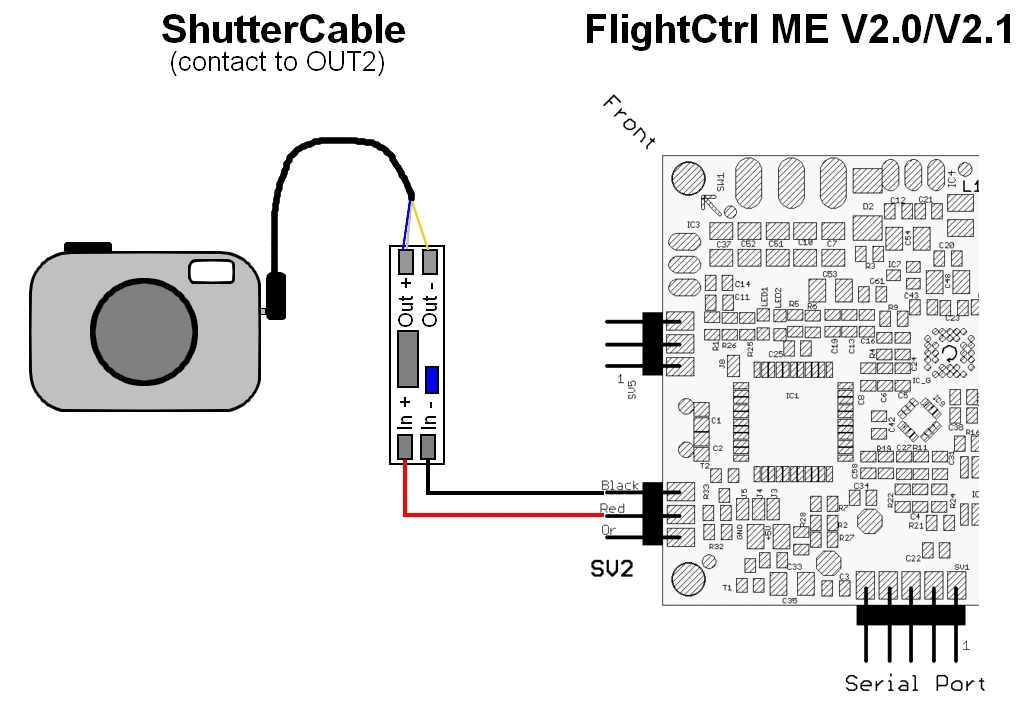
(To enlarge click on the image)
Connection example Extension-PCB
The Extension-PCB will be also connected directly to the switch outputs (SV2) of the FlightCtrl. Via the Extension-PCB you can use both switch outputs to the same time.
Here you have the opportunity i.e. to use one output to trigger the camera and the other output to switch the lighting.
Here now an example for the connection:
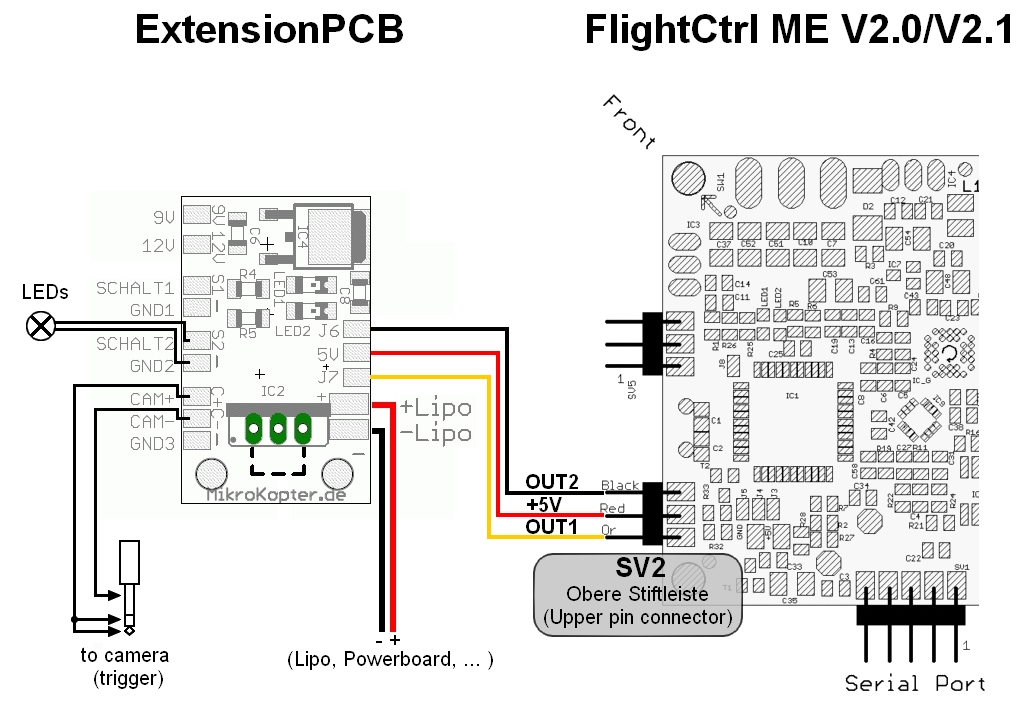
(To enlarge please click on the image)
Trigger camera with a button
So that you can trigger the camera with one of the examples described above you need to set an appropriate channel.
Here you can use each free channel on your transmitter.
In the following example channel 12 should be assigned to that function:
Step 1 - Assign button at the transmitter
First at all you need to assign a button at the transmitter for that channel. A description for assigning channels you will find in the instruction manual of the transmitter.
Assign button at the transmitter to channel 12:
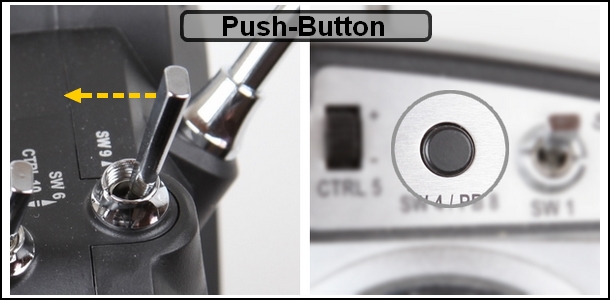
(Example image)
Step 2 - Check function in the KopterTool
In the KopterTool you can check under "Settings" and under the tab "Channels" the function of the button.
If you do not push the button the appropriate bar (here channel 12) is down below. If you push the button the bar is up:

On the left side you can see that channel 12 is assigned to the function "POTI8". This "POTI8" will be used for later assignments:

Step 3 - Assign switch output
So that the switch output switches while pushing the button and triggers the camera where the Shuttercable (or the Extension-PCB) is connected "POTI8" (channel 12) will be assigned to that output.
The set up will be done in the "Settings" under the tab "Outputs".
Under "Bitmask" you need to activate only the first box and the others will be still deactivated. Here the switch output "OFF" is only with a pushed button "ON".
In addition the low-voltage warning for that output will be deactivated.
If you leave the low-voltage warning for that output active the output from the battery warning would be continuously activated and triggers the camera unintentionally.

Trigger camera continuously after starting the motors
If you want to trigger the camera automatically and continuously during a flight you can do that pretty easy.
To that output (in this example output 1) which triggers the camrea with the ShutterCable or Extension-PCB a fixed time value will be assigned.
In addition you need to set the desired switch sequence via the box under the tab "Bitmask".
Example 1 - Camera set to single image recording
In this example the camera is set to Single image recording and should take a photo in specific time intervals.
After starting the motors the switch output should be closed every 2 seconds to trigger the camera.
For that you need to set a s follows:
- Output1 Timing: 100
- Output1 Bitmask: ON, OFF, ON, OFF,.....
- "only active after starting the motors" = Activated
- Green box behind the Bitmask = OFF

Throughout the number 100 each box has a switch period of 1 second (100x10ms = 1sec.).
Is a box under "Bitmask" "ON" the output will be switched on for the entered time. Is a box "OFF" the output will be off for that time.
If you checkmark under "only active after starting the motors" you can determine with the appearing green box behind "Bitmask" wether the function should be done with a running or a not running motor.
Here we leave the box off so that the function is active with a running motor.
You can enter also different time values under "Timing" and switch the boxes under "Bitmask" ON/OFF in any order.
Here some examples with different times:
Bitmask = |
ON |
OFF |
ON |
OFF |
ON |
OFF |
ON |
OFF |
Timing = 50 |
0,5sek |
0,5sek |
0,5sek |
0,5sek |
0,5sek |
0,5sek |
0,5sek |
0,5sek |
Timing = 100 |
1sek |
1sek |
1sek |
1sek |
1sek |
1sek |
1sek |
1sek |
Timing = 200 |
2sek |
2sek |
2sek |
2sek |
2sek |
2sek |
2sek |
2sek |
Out1 is: |
ON -> |
OFF -> |
ON -> |
OFF -> |
ON -> |
OFF -> |
ON -> |
OFF |
Example 2 - Camera set to Continuous Shootings
In this example the camera is set to Continuous Shooting and takes images as long as the motors are on.
Here it is necessary that the output is continuously switched on during the complete flight time. That should be active after starting the motors.
For that we need to set as follows:
- Output1 Timing: 100 (other numbers are also possible)
- Output1 Bitmask: All boxes ON
- "only active after starting the motors" = Activated
- Green box behind the Bitmask = OFF

In this case it doesn't matter what number is entered under "Timing". For that reason that all boxes are on this "Funktion" will be done continuously and also the output is continuously switched on.
So that "only active after starting the motors" is activated the switching operation will be started while starting the motors and been stopped while switching the motors off.
Trigger automatically via the WayPoint-Event
Alternatively to trigger via a button/switch at your transmitter you have the opportunity to trigger the camrea via the WayPoint-Event (WP-Event).
The WP-Event will be used for the WayPoint-Flight. Here you can trigger the camera individually and automatically for each WayPoint.
To use this function you should activate the function "combine with WP-Event":

(Example how to use POTI8)
A description of the WayPoint-Event you can find here: WaypointEvent
Align Camera
The camera can be adjusted either way manually via a potentiometer (see "Tilt control of the camera mount via the transmitter")
or automatically during the WayPoint-Flight.
For the automatic tilt of the camera mount you can assign degree numbers for the tilt and for each WayPoint (see en/MikroKopterTool-OSD#WayPoints_-_Defaults).
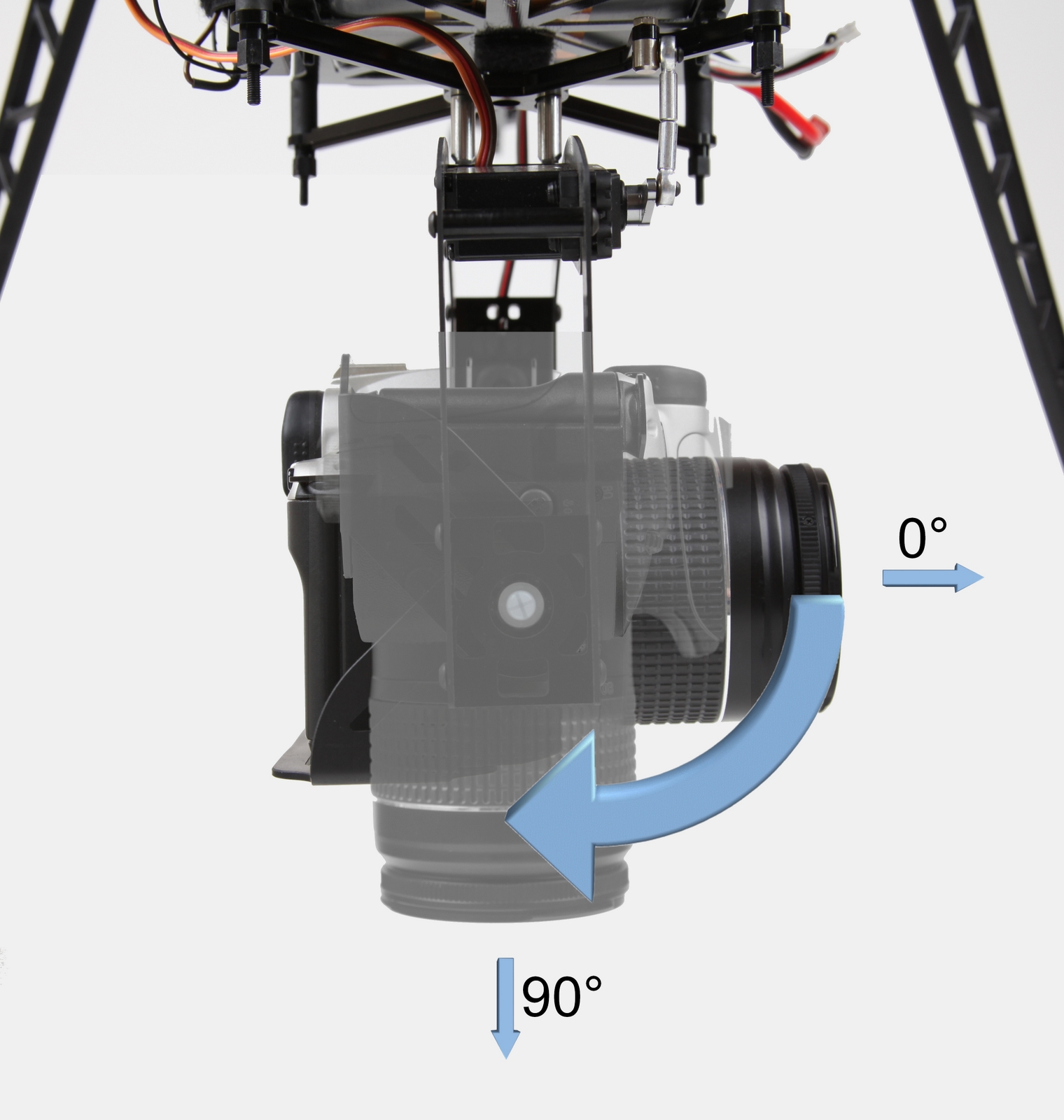
The 0°-Position of the camera you can determine by yourself. The set up will be done before starting the Kopter through the view direction of the camera before the start.
Before starting the camera should be aligned straight.
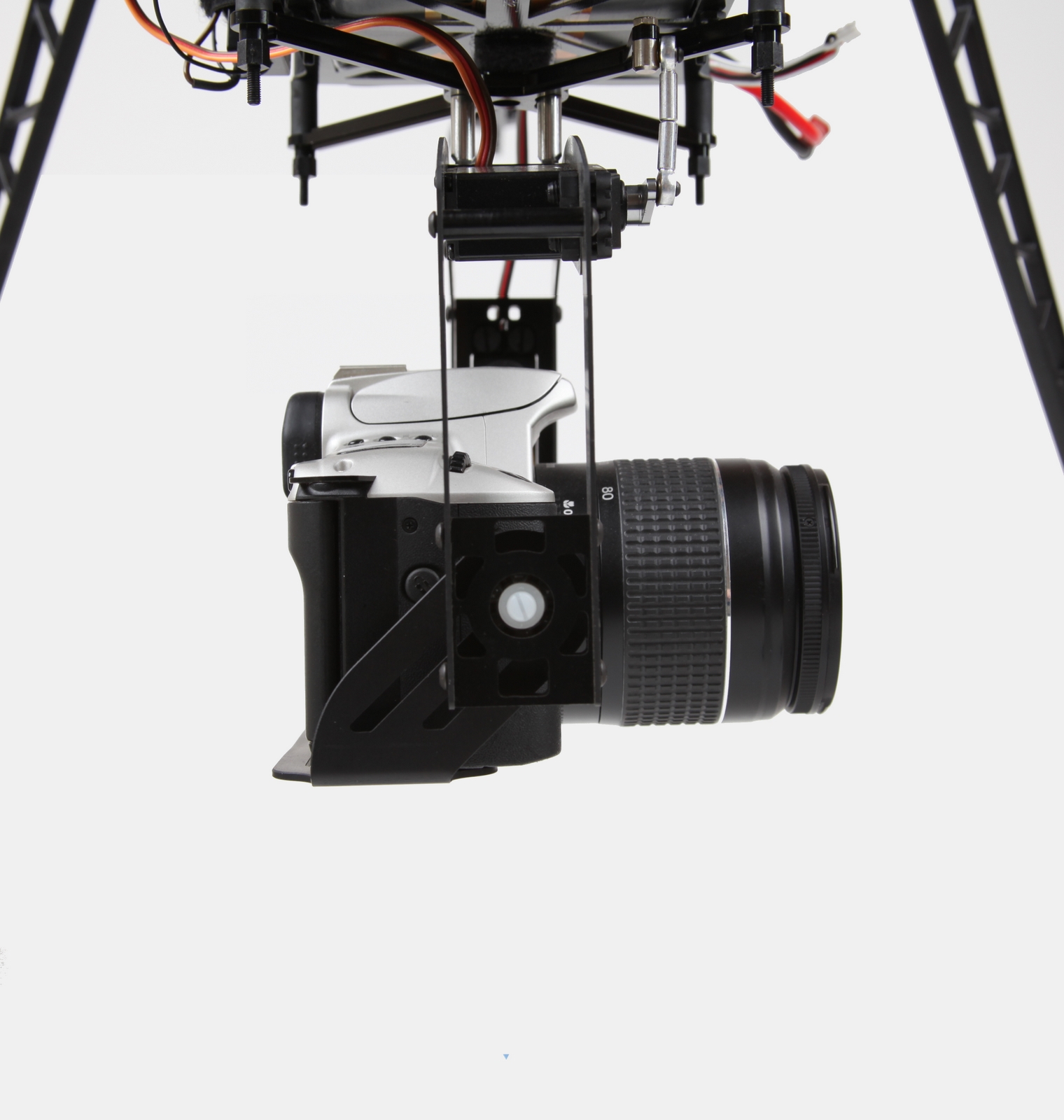
If the camera should tilt by 90° downwards for this WayPoint-Flight those 90° will be counted to the 0°-Offset:
If you let the camera point a little bit upwards before the start is that direction the 0°-Offset:
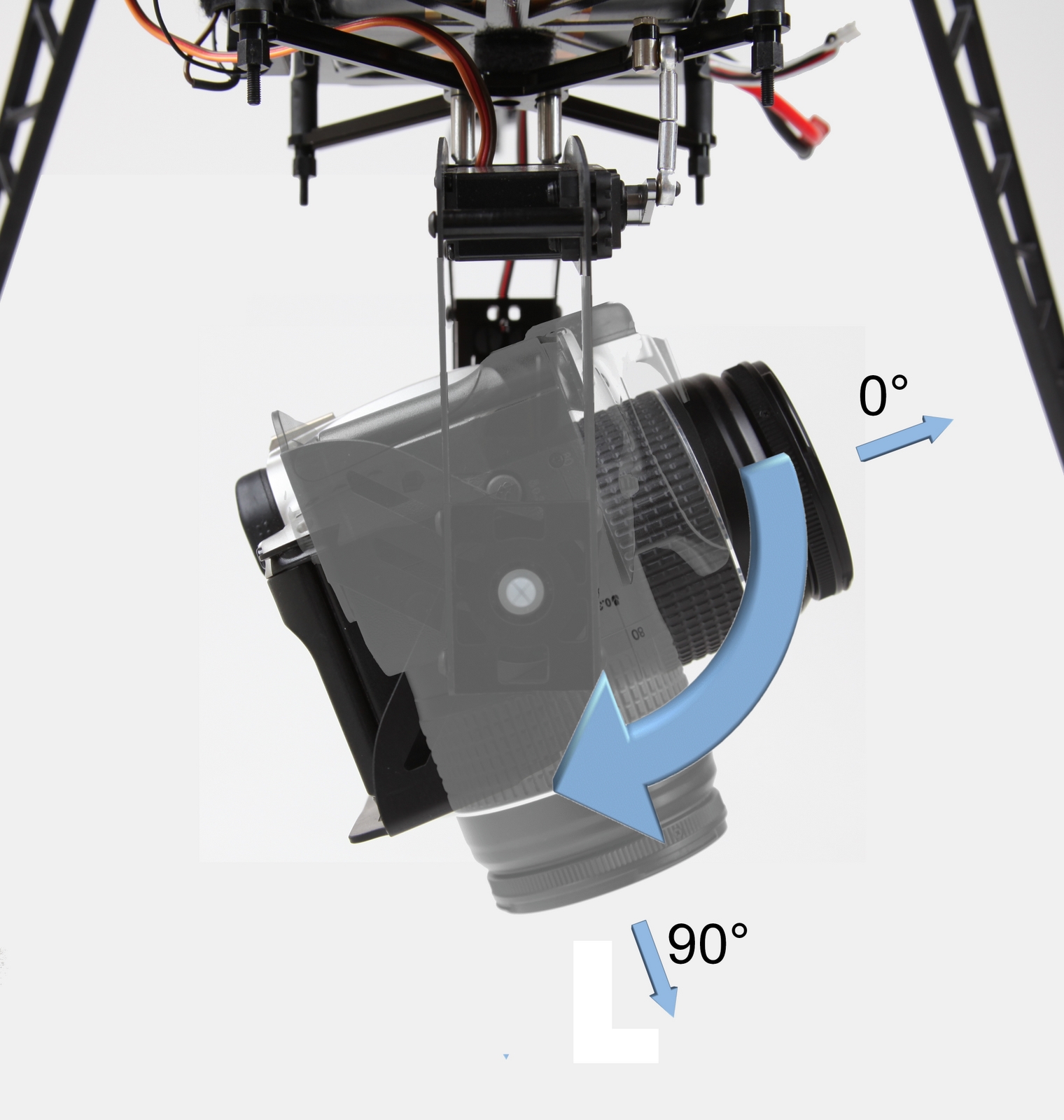
If the camera points a little bit downwards before the start is that direction the 0°-Offset.